VxWorks on Siemens SIMATIC IPCs: BSP, Drivers, and Setup
🚀 1. Introduction #
Siemens SIMATIC Industrial PCs (IPCs) are widely used in factory automation, process control, machine building, and industrial data acquisition. Their hardware platforms provide the processing capacity and industrial interfaces required by demanding automation applications.
Windows and Linux cover many general-purpose computing requirements, but some industrial applications need a different execution model. Motion control, time-sensitive data acquisition, and deterministic equipment control may require a real-time operating system with predictable task scheduling and direct access to hardware interfaces.
This is where the SIMATIC IPC Support Package for VxWorks comes in.
The package provides the integration components needed to run Wind River VxWorks on selected Siemens SIMATIC IPC models. It includes board support integration, specialized industrial communication drivers, hardware-monitoring interfaces, and diagnostic components that extend the functionality available through a standard VxWorks installation.
The documented package supports the 32-bit VxWorks 6.9 Runtime System and VxWorks 7 operating in 6.9 compatibility mode.
Rather than treating the SIMATIC IPC as a generic x86 computer, the support package provides access to platform-specific hardware and Siemens industrial communication interfaces. Developers can build applications using PROFIBUS, PROFINET, hardware diagnostics, and other IPC-specific functions without implementing every low-level interface themselves.
This article examines the supported hardware, development environment, BSP selection, VxWorks image configuration, application development, and debugging workflow.
🖥️ 2. Supported SIMATIC IPC Hardware and Software Components #
2.1 Supported IPC Models #
According to the SIMATIC IPC Support Package documentation, the package targets the following industrial PC models:
| SIMATIC IPC Model | Supported Platform |
|---|---|
| IPC227E | Supported |
| IPC277E | Supported |
| IPC427D | Supported |
| IPC627D | Supported |
| IPC647D | Supported |
| IPC827D | Supported |
| IPC847D | Supported |
The support package includes BSP integration guidance for these platforms, allowing developers to configure VxWorks for the corresponding processor and board architecture.
The documented BSP choices include:
itl_sandybridge— primarily intended for the IPC427D.itl_haswell— used for the other supported IPC models.itl_x86— a generic x86 BSP option.
The exact BSP selection must match the target hardware configuration. Choosing an incorrect BSP can result in problems with hardware initialization, device access, or system startup.
2.2 Supported Industrial Interfaces #
One of the main reasons to use the Siemens support package is its coverage of industrial communication interfaces.
The package provides specialized components for PROFIBUS and PROFINET.
| Interface | Supported Implementation | Access Method |
|---|---|---|
| PROFIBUS | On-board interface compatible with CP 5622 | DP-Base |
| PROFINET | On-board CP 16xx interface | IO-Base |
| PROFINET | Ethernet-based PN driver | IO-Base |
The two PROFINET implementations provide alternative access paths for the supported hardware configurations.
Only one PROFINET driver should be included in a given VxWorks image. The CP 16xx implementation and the Ethernet-based PN driver must not be enabled simultaneously.
This is a configuration constraint worth checking before building the kernel image.
2.3 Hardware-Dependent Functions #
Beyond industrial communication, the support package provides APIs for accessing hardware-specific functions on the SIMATIC IPC platform.
These functions cover several areas:
| Hardware Function | Supported Operations |
|---|---|
| Temperature monitoring | Read hardware temperature information |
| Fan monitoring | Obtain fan operating status |
| Battery monitoring | Check battery status |
| Watchdog | Configure and control watchdog functionality |
| User LEDs | Read or control supported indicator LEDs |
| Operating-hours counter | Access operating-time information |
| SMART status | Obtain supported storage-device health information |
| CMOS date/time | Access CMOS clock information |
| Retentive memory | Access supported persistent memory functions |
These interfaces are useful for applications that need to monitor the health of the IPC itself rather than only process data from connected industrial equipment.
For example, a machine-control application may need to monitor temperature and fan status, supervise watchdog behavior, and retrieve storage diagnostics as part of its equipment-maintenance strategy.
The package also includes the SIMATIC IPC DiagMonitor Agent, which interfaces with the Siemens diagnostic environment through DMAPI.
2.4 Kernel-Space and User-Space Access #
The provided functionality can be used from two application environments:
- Downloadable kernel modules.
- Real-Time Processes (RTPs).
Kernel modules execute within the VxWorks kernel environment and are suitable for functions that require kernel-level integration.
RTPs provide a user-mode execution environment for application software. They allow developers to organize application logic separately from the kernel and use the supported interfaces without placing the entire application inside kernel space.
The availability of a particular API should be checked against the corresponding package documentation, especially when moving application code between kernel modules and RTPs.
🧰 3. Development Environment and Support Package Installation #
3.1 Recommended Host Environment #
The documented development environment uses Windows 7 as the host operating system.
The recommended development tools are:
| Development Component | Version or Purpose |
|---|---|
| Host operating system | Windows 7, 32-bit or 64-bit |
| Wind River Workbench | V3.3 for VxWorks 6.9 |
| Wind River Workbench | V4 for VxWorks 7 |
| STEP 7 Classic | Optional industrial configuration tool |
| TIA Portal | Optional Siemens engineering environment |
| NCM PC | PROFIBUS/PROFINET network configuration |
The Siemens configuration tools are not mandatory for every application. Their use depends on the requirements of the industrial network and the target equipment.
The Workbench version must match the selected VxWorks development environment.
A VxWorks 6.9 project and a VxWorks 7 project should not be treated as interchangeable simply because the support package provides a compatibility mode for the latter.
3.2 Installing the SIMATIC IPC Support Package #
After installing the support package from the product CD, its files are placed under the Wind River installation directory:
<WIND_BASE>\target\3rdparty\siemensThe directory contains the package’s documentation, examples, header files, and libraries.
A typical organization is:
<WIND_BASE>
    |
    +-- target
         |
         +-- 3rdparty
              |
              +-- siemens
                   |
                   +-- doc
                   |
                   +-- examples
                   |
                   +-- include
                   |
                   +-- lib
The exact contents depend on the installed package version.
Before creating a project, developers should inspect the supplied documentation and examples to identify the relevant components and API interfaces.
This also helps avoid using a header file or library intended for a different VxWorks version.
3.3 BSP Selection and Hardware Integration #
A BSP provides the hardware-specific initialization and configuration needed to run VxWorks on a particular board.
For the SIMATIC IPC package, developers need to select the appropriate BSP and associated board bundle before configuring the system image.
The documented board bundles include:
- Intel Emerald Lake II.
- Intel Flathead Creek.
The selection depends on the actual IPC platform.
For background on BSP structure, board initialization, and hardware-driver integration, see VxWorks BSP Development.
The important point is that the Siemens support package extends the normal BSP configuration with additional components for industrial communication and SIMATIC-specific hardware functions.
⚙️ 4. Creating and Configuring a VxWorks System Image #
4.1 Create the Image Project in Workbench #
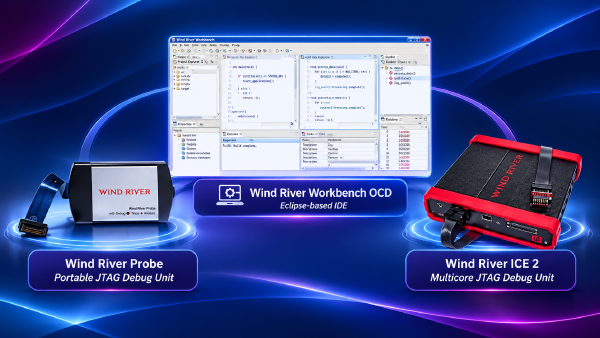
The first step is to create a VxWorks Image Project in Wind River Workbench.
During project creation, select:
- The appropriate VxWorks release.
- The target SIMATIC IPC BSP.
- The corresponding board bundle.
- The required GNU toolchain.
The project must be configured for the actual target hardware and supported software environment.
Once the basic BSP configuration is established, add the Siemens-specific components.
4.2 Add Siemens Support Components #
The support package provides components for industrial communication, hardware-dependent functions, and IPC diagnostics.
The main components to consider are:
| Component | Function |
|---|---|
| PROFINET CP 16xx driver | Accesses the supported on-board PROFINET interface |
| PROFINET PN driver | Provides the Ethernet-based PROFINET implementation |
| PROFIBUS CP 5622 driver | Provides access to the supported PROFIBUS interface |
| Hardware-dependent functions | Exposes IPC monitoring and control APIs |
| DiagMonitor Agent | Connects to Siemens IPC diagnostics through DMAPI |
For PROFINET, select either the CP 16xx driver or the Ethernet-based PN driver.
Do not include both in the same image.
The PROFIBUS component can be selected independently according to the target system’s communication requirements.
The hardware-dependent functions and DiagMonitor Agent should also be included when the application needs the corresponding monitoring or diagnostic capabilities.
4.3 Enable Essential VxWorks Components #
The system image also needs the standard VxWorks components required by the target application.
Typical configuration areas include:
Storage and file systems
- AHCI support for supported SATA storage devices.
- USB support when required.
dosFsfor DOS-compatible file-system access.
Networking
- Required Ethernet drivers.
- TCP/IP networking.
- Network services required by the application or development environment.
Development and runtime
- VxWorks shell.
- RTP support.
- Required system libraries.
- WDB target agent when remote debugging is needed.
The WDB agent is useful during development, but it should not be enabled in production images unless there is a specific, justified operational requirement and suitable access protection.
4.4 Configure Boot and Runtime Parameters #
After selecting the necessary components, configure the system’s boot and runtime parameters.
Important settings include:
| Parameter | Configuration Consideration |
|---|---|
| Boot parameters | Select the appropriate boot device and network settings |
| Ethernet interfaces | Configure the required network devices |
| Console | Select VGA or COM according to the target setup |
| FTP server | Enable when required by the development or deployment workflow |
| Timer tick | Commonly configured at 1000 Hz in the documented setup |
| SMP core count | Configure according to the target processor and application requirements |
| WDB target agent | Enable for development and debugging when required |
The timer tick and SMP configuration should be checked against the intended workload.
For example, changing the timer frequency can affect periodic software services, while the number of enabled processor cores influences application scheduling and resource allocation.
Do not assume that a configuration used on one SIMATIC IPC model is automatically suitable for another.
4.5 Build and Deploy the VxWorks Image #
Once the BSP, Siemens components, and standard operating-system components are configured, build the VxWorks image in Workbench.
After a successful build, the image can be deployed through the supported boot mechanisms.
The documented deployment options include:
- VxWorks BootApp.
- GRUB.
- GRUB Legacy.
Dual-boot configurations with Windows are also supported.
This can be useful during system development when the same IPC hardware needs to support both a Windows-based environment and a dedicated VxWorks runtime configuration.
The bootloader configuration must match the selected deployment method and the target’s storage layout.
4.6 Hard-Disk Boot Parameter Handling #
Hard-disk-based boot configurations require additional attention.
According to the support package documentation, handling boot parameters from a hard disk requires additional AHCI warm-start and NVRAM components.
These components must be included and configured as part of the boot integration.
A system that boots successfully through one mechanism should not automatically be assumed to support the same boot-parameter handling through another.
Developers should verify the complete boot sequence, including parameter persistence and restart behavior, on the actual target IPC.
💻 5. Application Development with VxWorks and SIMATIC APIs #
5.1 Downloadable Kernel Modules and RTP Applications #
The support package allows developers to build applications as downloadable kernel modules or user-mode RTP applications.
The choice depends on the application’s execution requirements and software architecture.
Downloadable kernel modules are appropriate when kernel-level integration is needed.
RTPs provide a separate user-mode execution environment, making them suitable for organizing application functionality outside the kernel.
Both approaches can use the supported Siemens interfaces, subject to the API availability and restrictions documented for each execution environment.
5.2 PROFIBUS Application Development #
PROFIBUS communication is accessed through the DP-Base interface.
Applications use the supplied interface to interact with the supported PROFIBUS implementation.
In a typical industrial application, the communication layer is responsible for exchanging process information with connected PROFIBUS devices, while the higher-level control application processes the resulting data.
The support package provides the required driver and software interface components.
Developers should consult the accompanying PROFIBUS documentation for the detailed API functions, initialization sequence, and communication configuration requirements.
5.3 PROFINET Application Development #
PROFINET communication is accessed through the IO-Base interface.
This interface provides the application-facing entry point for working with the supported PROFINET implementation.
The application architecture can separate industrial communication from the main control logic.
For example:
+--------------------------------------+
|          Industrial Application      |
|                                      |
|     Process Control / Data Logic     |
+--------------------------------------+
                  |
                  v
+--------------------------------------+
|          PROFINET IO-Base API        |
+--------------------------------------+
                  |
                  v
+--------------------------------------+
|       Selected PROFINET Driver       |
|                                      |
|          CP 16xx or PN Driver        |
+--------------------------------------+
                  |
                  v
+--------------------------------------+
|        SIMATIC IPC Hardware          |
+--------------------------------------+
The selected driver must correspond to the physical interface and the configuration used in the VxWorks image.
Remember that the CP 16xx implementation and the Ethernet-based PN implementation are alternatives, not components to combine in the same image.
5.4 Accessing Hardware Monitoring Functions #
The hardware-dependent APIs provide another useful capability.
Applications can retrieve IPC operating information and interact with supported hardware functions.
Typical application operations include:
- Reading temperature information.
- Checking fan and battery status.
- Controlling the watchdog.
- Managing user LEDs.
- Reading the operating-hours counter.
- Accessing SMART status.
- Obtaining CMOS date and time.
- Accessing supported retentive memory.
These functions can be used to implement equipment supervision and diagnostic reporting.
For instance, an industrial controller can periodically check relevant hardware status and report abnormal conditions through its existing monitoring interface.
The API documentation should be consulted for the actual function signatures, return values, initialization requirements, and hardware-specific limitations.
5.5 Using the DiagMonitor Agent #
The SIMATIC IPC DiagMonitor Agent provides an interface to the Siemens diagnostic environment through DMAPI.
It allows applications to integrate supported IPC diagnostic information into the system’s monitoring architecture.
This is particularly useful in industrial installations where the operating condition of the control computer is part of the overall equipment-health assessment.
Instead of monitoring only the application process, developers can also consider hardware-level information provided by the IPC.
The actual diagnostic functions available depend on the installed support-package version and the hardware platform.
5.6 Workbench API Documentation and Code Assistance #
The support package includes online help and code-completion support within Wind River Workbench.
These facilities make it easier to identify the available APIs and integrate them into application projects.
For development work, it is worth checking the supplied examples before writing new interface code.
The examples provide a reference for the intended API usage and help reduce errors involving initialization, library selection, and component dependencies.
🐞 6. Debugging and Runtime Analysis #
6.1 Remote Debugging Through WDB #
Remote debugging is performed through the WDB target agent over TCP/IP.
The development host connects to the running VxWorks target through the network, allowing developers to inspect application execution and debug software on the actual IPC.
For RTP debugging, the Target Server File System (TSFS) is also used.
This provides the required development-time file access between the host and target environments.
A typical debugging setup consists of:
+--------------------------------------+
|       Development Host               |
|                                      |
|       Wind River Workbench           |
+--------------------------------------+
                  |
                  |
             TCP/IP
                  |
                  |
+--------------------------------------+
|       SIMATIC IPC Target             |
|                                      |
|       VxWorks Runtime System         |
|                                      |
|       WDB Target Agent               |
|                                      |
|       Kernel Modules / RTPs          |
+--------------------------------------+
Before starting a remote debugging session, verify the network configuration, target-agent availability, and required host-to-target connectivity.
6.2 Target Shell Configuration #
The VxWorks target shell provides command-line access to the running system.
The documented environment includes command-line editing support and configurable timeout behavior.
For development, these settings improve interaction with the target, particularly when engineers need to run diagnostic commands or monitor long-running operations.
The shell also provides access to various system information and diagnostic routines.
Timeout configuration should be appropriate for the development workflow. It should not be confused with changes to the execution deadlines of real-time application tasks.
6.3 Runtime Inspection with Spy and Show Utilities #
Wind River provides Spy utilities and various show routines for runtime analysis.
These tools help developers inspect system activity and investigate application behavior.
Typical debugging tasks include:
- Inspecting task execution.
- Checking system resource utilization.
- Investigating unexpected task behavior.
- Reviewing driver and device status.
- Examining the runtime state of the target.
For real-time applications, runtime analysis should be performed with care.
Debugging agents and diagnostic utilities consume system resources and can affect the behavior of the environment being measured.
Performance measurements intended to represent production behavior should therefore be repeated with development-only debugging facilities disabled.
🔒 7. Practical Configuration and Security Considerations #
7.1 PROFINET Driver Selection #
Only one of the two supported PROFINET implementations may be included in a VxWorks image:
- CP 16xx on-board PROFINET driver.
- Ethernet-based PN driver.
This restriction should be checked during project configuration.
Including both can create conflicts in the intended driver configuration.
7.2 Hard-Disk Boot Requirements #
When boot parameters are handled through a hard disk, additional AHCI warm-start and NVRAM components are required.
These dependencies should be included in the image before validating the boot process.
Test both initial startup and subsequent restarts to confirm that the intended boot parameters are preserved.
7.3 WDB Security #
The WDB target agent is useful for development, but remote debugging access should not be left unnecessarily exposed in production systems.
Recommended precautions include:
- Disable the WDB agent in production images unless explicitly required.
- Restrict access to development and maintenance networks.
- Protect administrator accounts.
- Review enabled network services.
- Avoid exposing debugging interfaces to untrusted networks.
A development configuration should not automatically become the production configuration.
7.4 VxWorks 7 Compatibility Mode #
The documented support package supports VxWorks 7 in 6.9 compatibility mode.
This is a specific compatibility arrangement, not a statement that every VxWorks 6.9 component or application will run unchanged in every VxWorks 7 environment.
The support package manual dedicates Chapter 14 to the differences associated with this configuration.
Developers should review that chapter when selecting the VxWorks release or migrating an existing project.
For additional background on the differences between legacy VxWorks BSPs and VxWorks 7, see Porting Legacy VxWorks 6.9 BSPs to VxWorks 7.
The migration considerations discussed in that article provide useful context, but the Siemens-specific support package documentation remains the reference for the supported SIMATIC IPC configurations.
📚 8. Official Documentation and Platform References #
The primary reference for implementing this solution is the official SIMATIC IPC Support Package for VxWorks Operating Manual:
- Document number:
A5E33664894-AB - Document date:
08/2015
The manual provides the detailed procedures, configuration tables, API references, and example code required for development.
The following documentation should also be consulted as appropriate:
- Wind River VxWorks documentation for the selected release.
- Wind River Workbench development documentation.
- Siemens SIMATIC IPC hardware documentation.
- Siemens SIMATIC NET documentation.
- PROFIBUS DP-Base interface documentation.
- PROFINET IO-Base interface documentation.
- Siemens DiagMonitor and DMAPI documentation.
Because the referenced support package manual dates from 2015, its compatibility information should be treated as specific to the documented software and hardware generations. Verify package availability, supported IPC revisions, toolchain compatibility, and security updates with Siemens and Wind River before starting a new deployment.
When configured for the correct platform, the SIMATIC IPC Support Package provides a practical integration path for running VxWorks on supported Siemens industrial PCs while retaining access to their industrial communication interfaces and hardware-specific diagnostic functions.